myKillik Web
The following myKillik features and enhancements were released today.
Privacy Lock - Account & Settings
If you are frequently using the myKillik website and want to 'lock' your screen instead of logging out simply activate your Privacy Lock. This will allow you to set a PIN and an automatic timeout of your choosing.
This can be activated through Account > Settings:
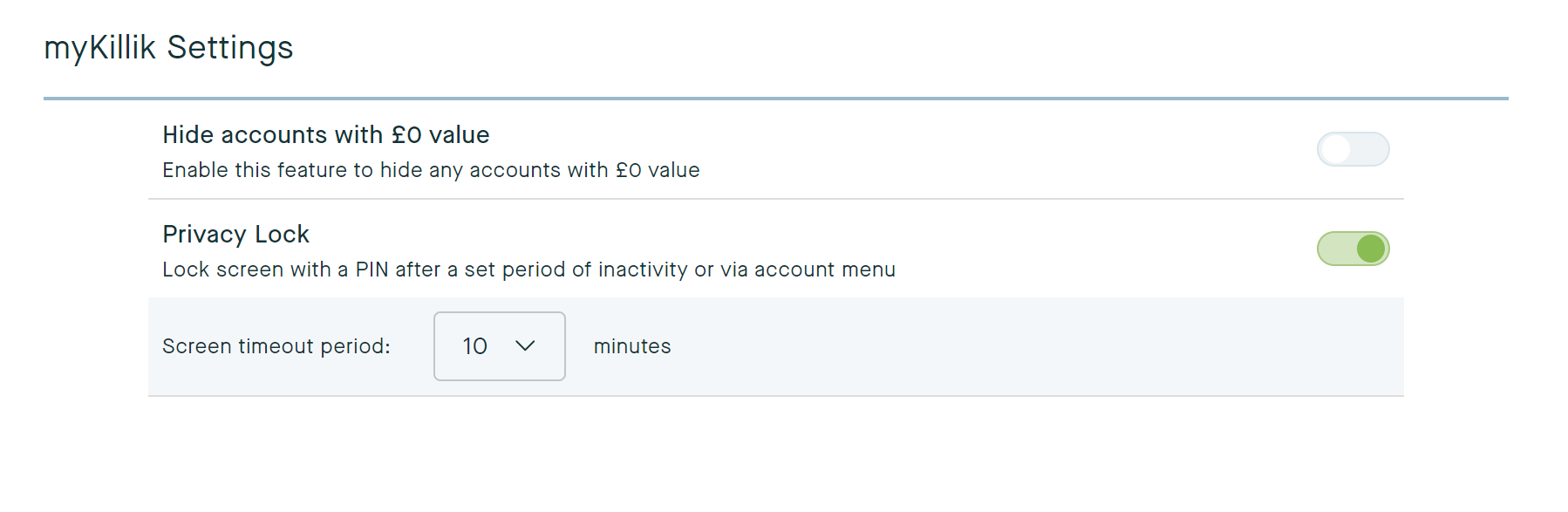
Once you have entered a PIN for the Privacy Lock, this will be activated on your screen timeout selection or by clicking Privacy Lock:
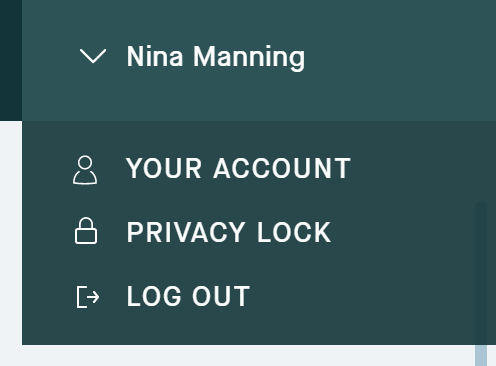
If you happen to forget your PIN you can simply log out and back in again and reset your PIN by setting up the Privacy Lock again.
Your Movers - Dashboard & News
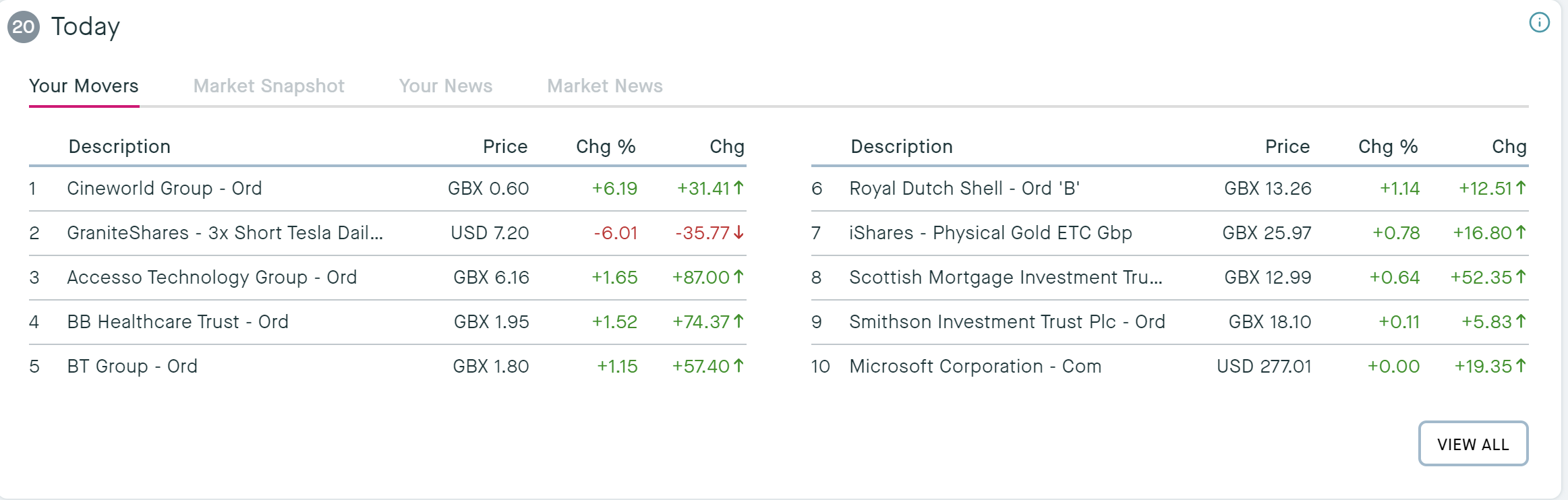
The return of Your Movers information. This is viewable on both the dashboard and also via 'Ideas' > 'News'. This allows you to view top daily movers based on your investments.
Market Snapshot - Dashboard & News
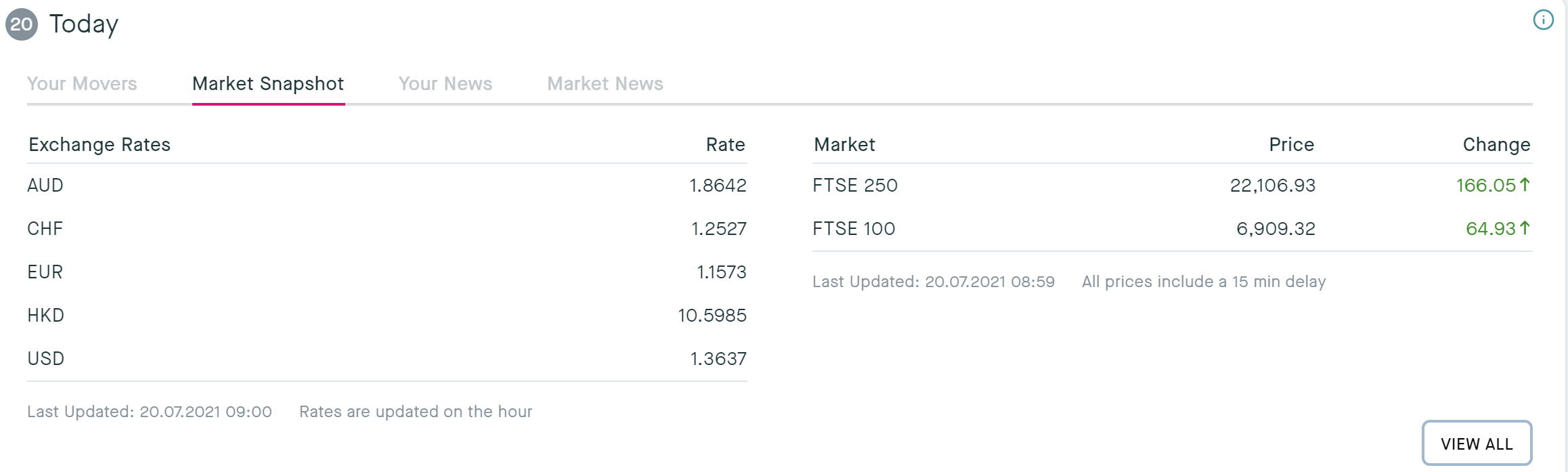
Market Snapshot information including FTSE 100 & 250 and exchange rates. This information is also available via 'Ideas' > 'News'.
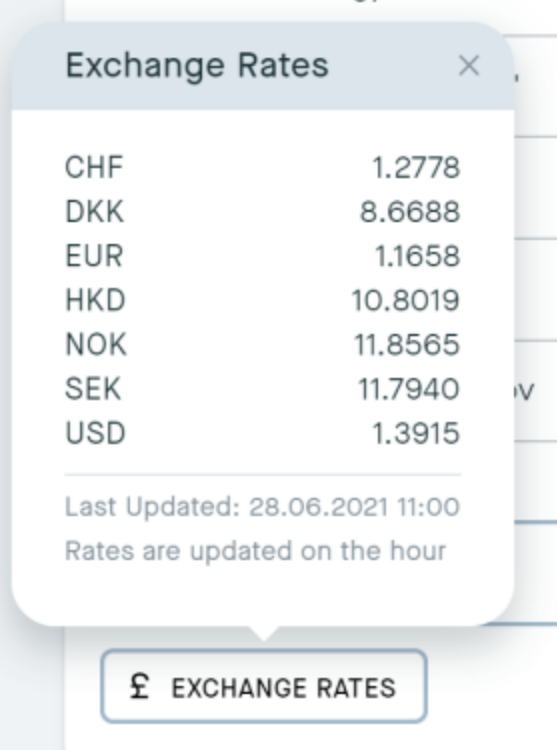
Exchange Rates - Your Investments
Exchange rate information based on your investments / cash.
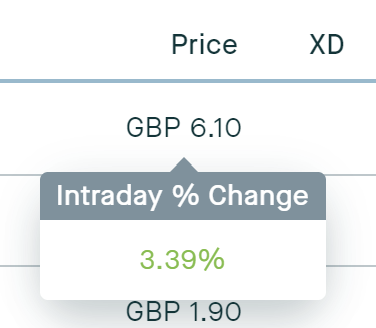
Intra Percentage Price Change - Your Investments
Hover over the price of your chosen investment to get the intraday price change as a %.
Compact View - Site Wide
If you would like a more compact view for your investments and other data tables, you can switch between a Standard and Compact view by selecting between the two buttons in the top left of the screen (next to our logo). This gives you a quick and easy way to be able to see more of your activity on one page.

Customising your Dashboard View - Settings & Dashboard
If you go to 'Your Account' and 'Settings' you now have the option to choose between Classic and Advised views.
Simply select between the options:

Classic View - is your usual Dashboard view.
Advised View - gives a higher emphasis to your Wrappers Breakdown, your Accounts Breakdown and News (this includes Your Movers, Market Snapshot, Market News and Your News).
Wrappers Filter to Dashboard - Dashboard
See the totals in your Wrappers by filtering on the Dashboard.
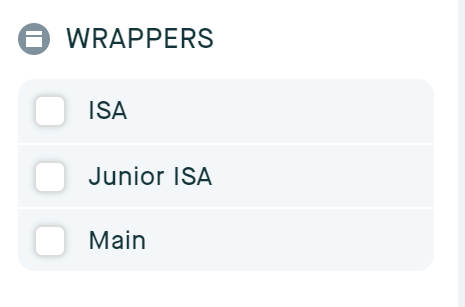
Or, see the totals in your Wrappers by activating the 'Advised View' in 'Settings
Setting Advised View:

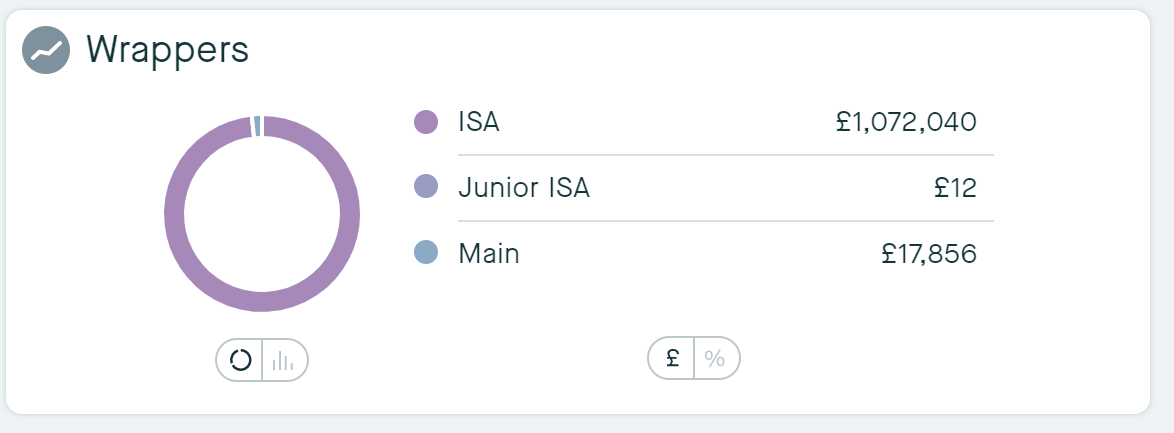
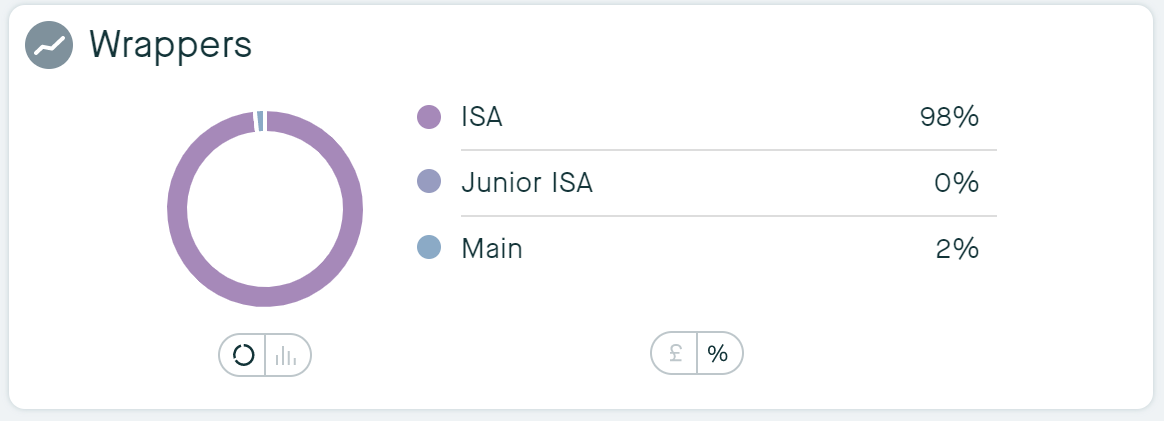
Wrappers Graphs - Dashboard > Advised View
If you have switched to Advised View in Settings, you can see graphs of your wrappers on the dashboard by % and £ value.
Example of Wrappers graphs:
Add Accounts filter to Documents - Documents
View your Documents by selecting the Accounts filter for easier viewing of your Documents.